In Part 1, I documented the teardown and initial restoration of my 1984 Tomy Omnibot. That meant cleaning up battery acid damage, getting the drive motors working, and that exciting first drive test. Now it's time to take things further: Bluetooth control and giving this 40-year-old robot a modern voice.
Inspiration: The Bluetooth Cassette Hack
While researching Omnibot restorations, I stumbled upon a brilliant YouTube series by a maker who used a Bluetooth cassette adapter to control their Omnibot. The concept is genius. The Omnibot's original remote control works by sending audio tones through the air, which the robot interprets as movement commands. Each direction has a specific frequency:
- Forward: 1614 Hz
- Right: 1811 Hz
- Backward: 2013 Hz
- Left: 2208 Hz
Instead of transmitting these tones wirelessly like the original remote, what if we could play them directly through the cassette player? A Bluetooth cassette adapter inserted into the Omnibot's tape deck could receive audio from a phone or laptop and send those control tones straight to the robot's brain.
I ordered a Bluetooth cassette adapter and started experimenting.
Building a Web-Based Controller
Once I had the Bluetooth cassette working, I needed a way to generate the control tones. Rather than building a native app, I decided to create a web-based controller using the Web Audio API. This approach has several advantages:
- Works on any device with a browser like a laptop, phone, or tablet
- No installation required
- Easy to iterate and add features
- Can send audio through Bluetooth to the robot
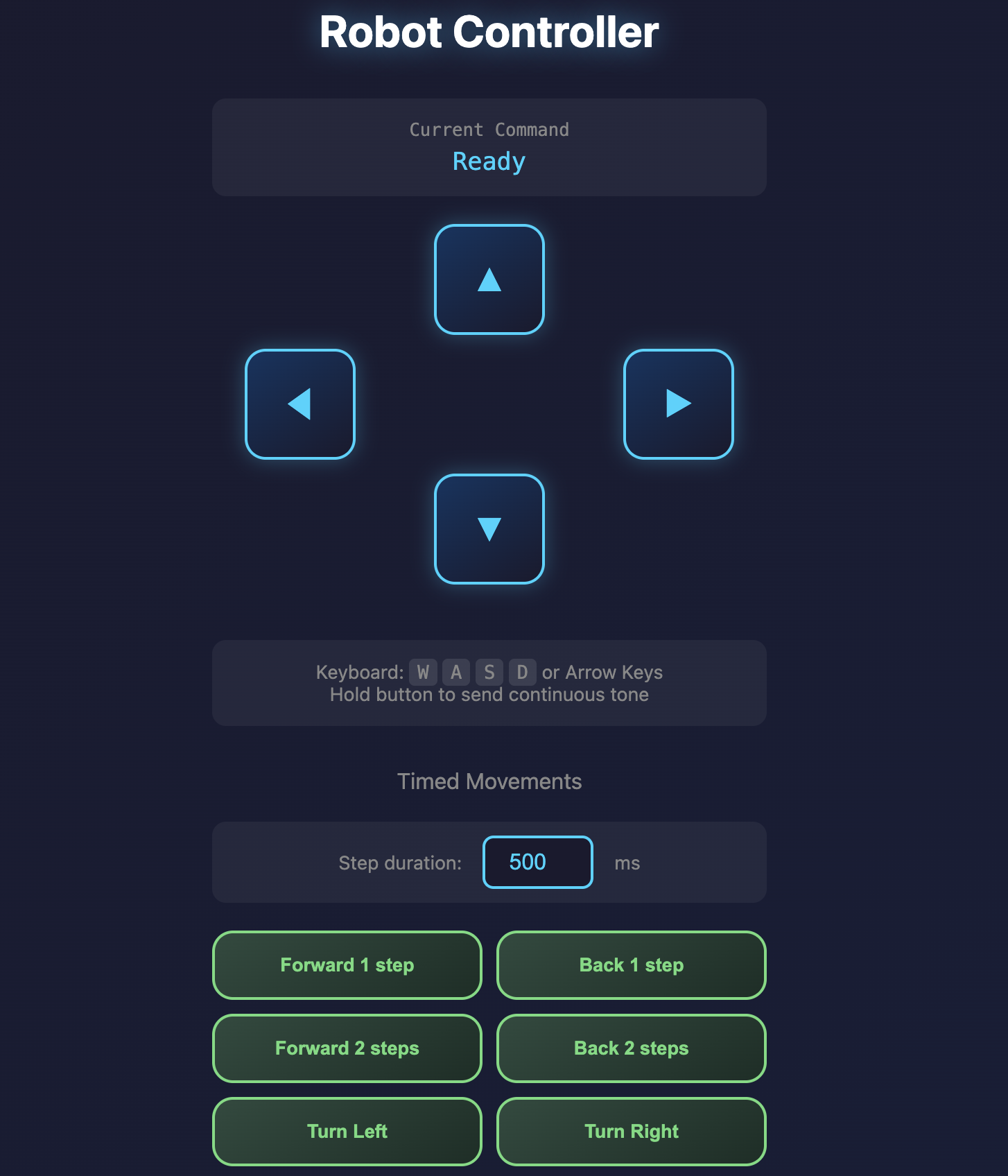
I built an HTML page with a D-pad interface that generates sine wave tones at the exact frequencies the Omnibot expects. Hold down the forward button, and it plays a 1614 Hz tone. Release, and it stops. The result is a fully functional wireless controller running in a browser.
The Controller Interface
The web controller I built includes several features:
- D-Pad Controls: Touch or click to move forward, backward, left, and right
- Keyboard Support: Use WASD or arrow keys for control
- Timed Movements: Preset buttons for precise movements like "Forward 1 step" or "Turn Left 90°"
- Sequence Builder: Drag and drop movement blocks to create custom routines
- Pre-built Sequences: Drive in a square, zigzag, figure-8, and more
- Calibration: Adjust turn duration until the robot rotates exactly 90°
The interface uses a dark theme with neon accents, fitting for controlling a robot from the 80s. The buttons provide visual feedback when pressed, and a status display shows the current command being sent.
Adding Robot Speech
Here's where it gets really fun. The Omnibot has a built-in speaker that was originally used for playing back recorded cassette messages. Since we're now sending audio through the cassette player via Bluetooth, we can send any audio, including synthesized speech.
I integrated the browser's Speech Synthesis API into the controller. The web page can generate text-to-speech audio and route it through the laptop's Bluetooth to the robot's speaker. The Omnibot literally speaks!
The controller includes:
- A text input field for custom messages
- Quick phrase buttons: "Hello", "Yes", "No", "Thank you"
- Fun preset phrases like "Hi, my name is Tomy Omnibot" and "I was made by Mario the Maker"
- On macOS, it even uses robotic-sounding voices like "Zarvox" when available
Tomy Delivers a Soda
Time to put everything together. The Omnibot's original purpose was to be a butler robot, complete with a serving tray for delivering drinks. Using the web controller, I programmed a sequence of movements and had Tomy deliver a soda.
In the video, you can see the robot responding to movement commands sent from the web interface while speaking through its built-in speaker. It's incredibly satisfying to see a 40-year-old robot working again, but now with modern control capabilities.
The Code
I've open-sourced the controller code on GitHub: github.com/MarioCruz/Tomy-Omnibot-Control-
The entire controller is a single HTML file with embedded CSS and JavaScript. No frameworks, no build process, no dependencies. Just open it in a browser, pair your Bluetooth cassette adapter, and start controlling your Omnibot.
Looking Ahead: AI Vision Control
Now the question becomes: Can we make this smarter?
The current setup requires manual control through the web interface. But what if the Omnibot could see and respond to its environment? What if kids could press simple buttons to give commands like "bring me that" or "follow me"?
My plan for Part 3 is to add:
- Raspberry Pi integration: A small computer mounted inside the robot
- Pi AI Camera: Computer vision to detect objects and people
- LLM integration: Using a language model to interpret commands and decide actions
- Simple button interface: Big, kid-friendly buttons for demos
The goal is to have this ready for Maker Faire Miami 2026, where kids can interact with the Omnibot using simple voice commands or button presses. The robot will use vision AI to understand its surroundings and an LLM to decide how to respond.
Imagine asking a 40-year-old robot to bring you something, and it actually figures out how to do it. That's the dream.
What's Next
The restoration continues! Here's the current status:
- Bluetooth control: Working via cassette adapter
- Web controller: Complete with movement, sequences, and speech
- Speech synthesis: Robot can talk through its original speaker
- Wheels: Still waiting on 3D printed replacements
- Alarm clock display: Still hunting for that replacement part
- AI vision: Done! See Part 3
There's something magical about taking vintage technology and giving it new capabilities while preserving its original charm. The Omnibot looks and sounds like it did in 1984, but now it's controlled by a web browser and speaks with synthesized voice. The cassette player that once played recorded messages now receives Bluetooth audio from anywhere in the world.
The future and the past, working together.
Continue to Part 3, where we add AI vision and a cloud LLM brain to this 80s icon.